


 June 3, 2026 7:12 am
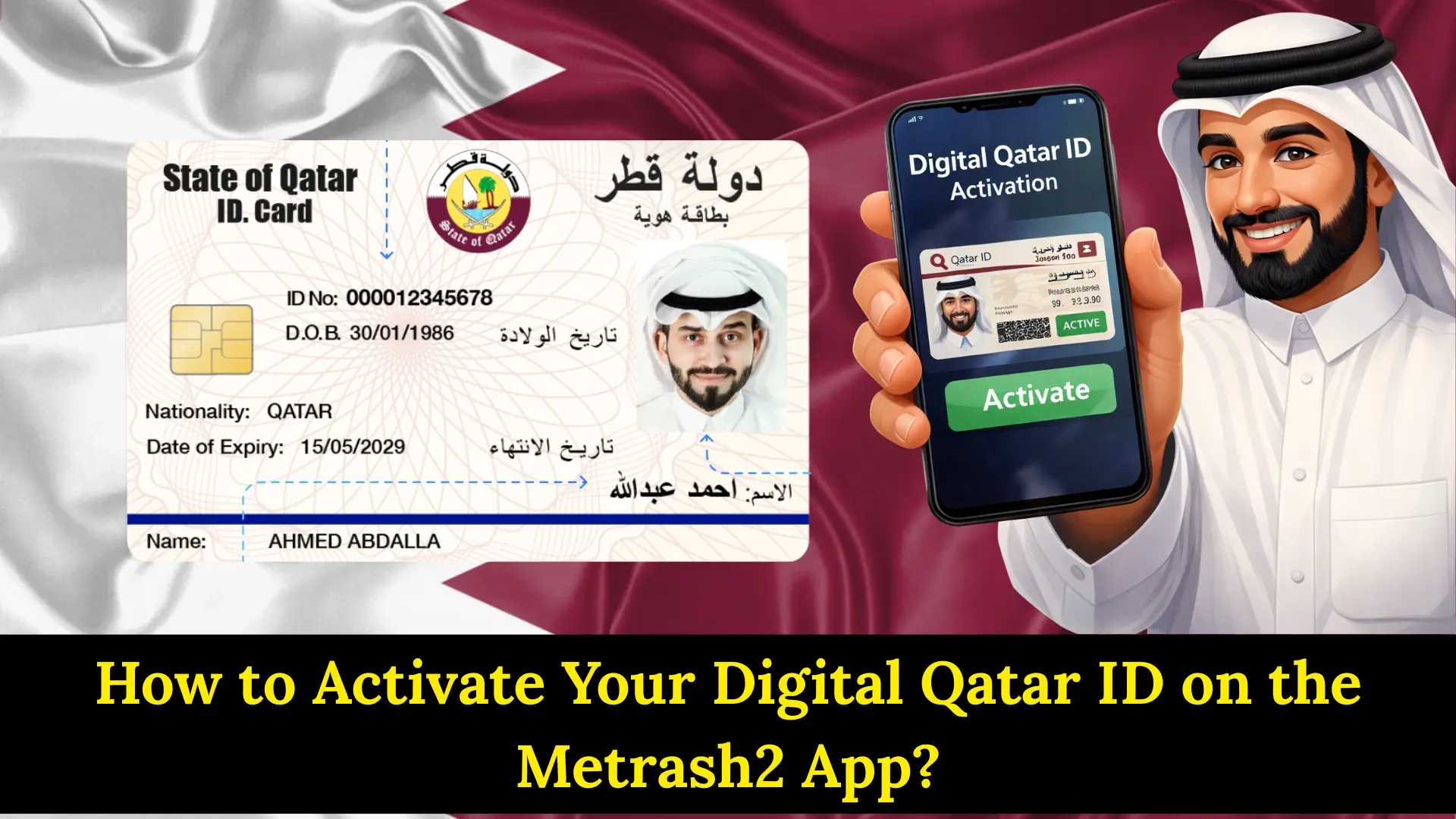
How to Activate Your Digital Qatar ID on the Metrash App? Living in Qatar just got easier! You no longer need to carry your physical Qatar ID card everywhere you go. The government of Qatar now allows you to keep your ID on your phone through an app called Metrash. This guide will show you exactly how to set it up in simple, easy-to-understand steps.
What is Digital Qatar ID?
A digital Qatar ID is simply an electronic copy of your residence permit card that you can keep on your phone. It’s completely legal and accepted by police, government offices, and many other places in Qatar. Think of it as having your official ID card inside your mobile phone instead of in your wallet.
The Metrash app is the official government application made by the Ministry of Interior. It’s safe, secure, and free to use. Besides your Qatar ID, you can also store your driver’s license, car registration, and other important documents in this app.
What You Need Before Starting?
Before you begin, make sure you have these things ready:
- A smartphone: You need either an Android phone or an iPhone. The phone should be working properly with internet connection.
- Your SIM card must be in your name: This is very important! Your mobile phone number must be registered with your Qatar ID number. If your SIM card is in someone else’s name, this will not work. You can check with Ooredoo or Vodafone to make sure your number is registered correctly under your name.
- Your physical Qatar ID card: Keep your actual ID card with you because you’ll need to type information from it. Make sure your ID is not expired.
- Working mobile number: Your phone should be able to receive text messages from Qatar government services.
How to Activate Your Digital Qatar ID on the Metrash App?
Step 1: Get the Metrash App on Your Phone
Open the app store on your phone. If you have an Android phone, open “Play Store.” If you have an iPhone, open “App Store.”
Type “Metrash” in the search box. Look for the app with the Ministry of Interior logo – it has maroon and white colors. Make sure it’s the official app from the Qatar government.
Click “Install” or “Get” to download it. The app will take a few minutes to download depending on your internet speed. It’s better to use WiFi if possible.
Step 2: Open the App and Choose Your Language
After the app is installed, tap to open it. The first screen will ask you to choose a language. You can pick Arabic or English – whichever language you understand better.
Next, you’ll see two buttons: “Login” and “Register.” Since this is your first time using the app, tap on “Register.”
Step 3: Type Your Qatar ID Information
Now the app will ask for information from your Qatar ID card. Take out your physical ID card and look at it carefully.
Type your Qatar ID number exactly as it appears on the card. It’s 11 numbers – be very careful not to make any mistakes. Even one wrong number will cause problems.
Then type your ID expiry date. Look at the date printed on your card and enter it exactly the same way. The app usually wants it in day/month/year format (for example: 15/06/2027).
Check everything twice before clicking “Next” or “Submit.”
Step 4: Wait for the Text Message Code
This is the most important part! After you submit your information, the Ministry of Interior computer will check if everything is correct.
If your details are right and your phone number is registered under your Qatar ID, you will receive a text message (SMS) within 1-2 minutes. The message will come from number 92992.
This message contains a special code – usually 4 to 6 numbers. This code proves that you are really you.
What to do with the code:
Most of the time, you just type this code into the app when it asks for it. The app will show a box where you enter the code you received.
Sometimes, the app might tell you to send this code back to 92992. If this happens, open your phone’s message app, type the code, and send it as a text message to 92992. You’ll get a confirmation message saying it worked.
If you don’t receive any message after 5 minutes, check that your phone has network signal and can receive messages. Also make sure your SIM card is really registered in your name.
Step 5: Make Your Secret PIN Code
After your phone number is confirmed, the app will ask you to create a PIN code. This is a 6-number password that only you should know.
Choose 6 numbers that you can remember easily, but don’t use very simple numbers like 123456 or 000000. The app might not accept these because they’re too easy to guess.
Type your 6 numbers, then type them again to confirm. Both times should match exactly.
Remember this PIN! You’ll need it every time you open the Metrash app. Write it down somewhere safe if you think you might forget it, but don’t share it with anyone.
Step 6: See Your Digital Qatar ID
Great job! You’re done with activation. The app will now show you the main screen with different options.
To see your digital Qatar ID, look for an icon that looks like a wallet or cards. It might be called “Wallet” or “Digital Wallet.” Tap on it.
You’ll now see your Qatar ID on your phone screen! It shows your photo, name, QID number, and all other information just like the real card. You can tap on it to make it bigger and easier to show to people.
Using Metrash on a New Phone
Did you get a new phone? Don’t worry – you don’t have to do everything again.
- Install Metrash on your new phone from the app store. This time, tap “Login” instead of “Register.”
- Type your Qatar ID number and the same 6-digit PIN you created before.
- The app will send a one-time password (OTP) to your phone via text message. Type this OTP in the app.
- That’s it! Your digital ID and all your documents will appear on your new phone.
Remember: Metrash only works on one phone at a time. When you log in on your new phone, it will automatically log out from your old phone.
Common Problems and How to Fix Them
Problem: I Didn’t Get the Text Message Code
First, wait 5 minutes because sometimes messages come late. If still nothing, check these things:
- Is your phone showing network signal?
- Can you receive other text messages?
- Is your SIM card registered in your name with your QID number? Call Ooredoo (111) or Vodafone (111) to check this.
Problem: The App Says my QID or Date is Wrong
Check your physical Qatar ID card again. Make sure you typed every number correctly. Count the digits – your QID should be exactly 11 numbers. Check the expiry date matches exactly what’s printed on your card.
Problem: The App Keeps Closing or Not Working
Try these solutions:
- Make sure your phone software is updated
- Delete the app and install it again from the app store
- Restart your phone and try again
- Check if you have good internet connection
Problem: I Forgot my PIN Code
On the login screen, look for “Forgot PIN” button. Tap it and follow the steps. You’ll need to verify your identity using your phone number, then you can make a new PIN.
Why Digital Qatar ID is Useful?
Having your Qatar ID on your phone makes life much easier. Here’s how:
- No need to carry your wallet everywhere: You can leave your physical ID card at home and just take your phone. Most people already carry their phones everywhere anyway.
- Police checkpoints: When police ask for your ID at traffic stops, you can show them your phone. They accept the digital version.
- Government offices: Many government service centers accept digital QID for various services and transactions.
- Other useful features: The Metrash app also lets you check traffic fines, see vehicle information, and pay violations directly from your phone. Everything in one place!
Keeping Your Digital ID Safe
Your digital ID is as important as your physical card, so keep it safe:
- Never share your PIN: Don’t tell anyone your 6-digit PIN code. Not your friends, not your family. Government employees will never ask you for your PIN.
- Be careful when showing your ID: When you show your digital ID to someone, don’t let them take photos of it or write down your information unless necessary.
- Keep your phone locked: Use your phone’s lock screen password or fingerprint so others can’t open your phone and access the app.
- Update the app regularly: When the app store shows an update for Metrash, install it. Updates fix problems and add security.
Conclusion
Activating your digital Qatar ID on Metrash is quick and simple. Download the app, enter your details, verify with SMS, create a PIN, and access your wallet. Now you have official identification on your phone anytime, anywhere.
Sheikh Khalifa bin Hamad
I am Sheikh Khalifa bin Hamad, the writer behind https://qataridcheck.com/. I share simple guides about Qatar ID services, residency updates, and government procedures. My goal is to help residents easily check QID status, renewals, fines, and official information online.
